Anatomy of the map
Map is the map. Nodes lists every step with its tags, notes and comments, and searches names, descriptions, Objects, tags and notes. Inventory holds the map’s definitions: Classes, Objects, Tags, Lanes and stage note types. The sliders icon opens the map’s settings.
Inputs, outputs and shared dots
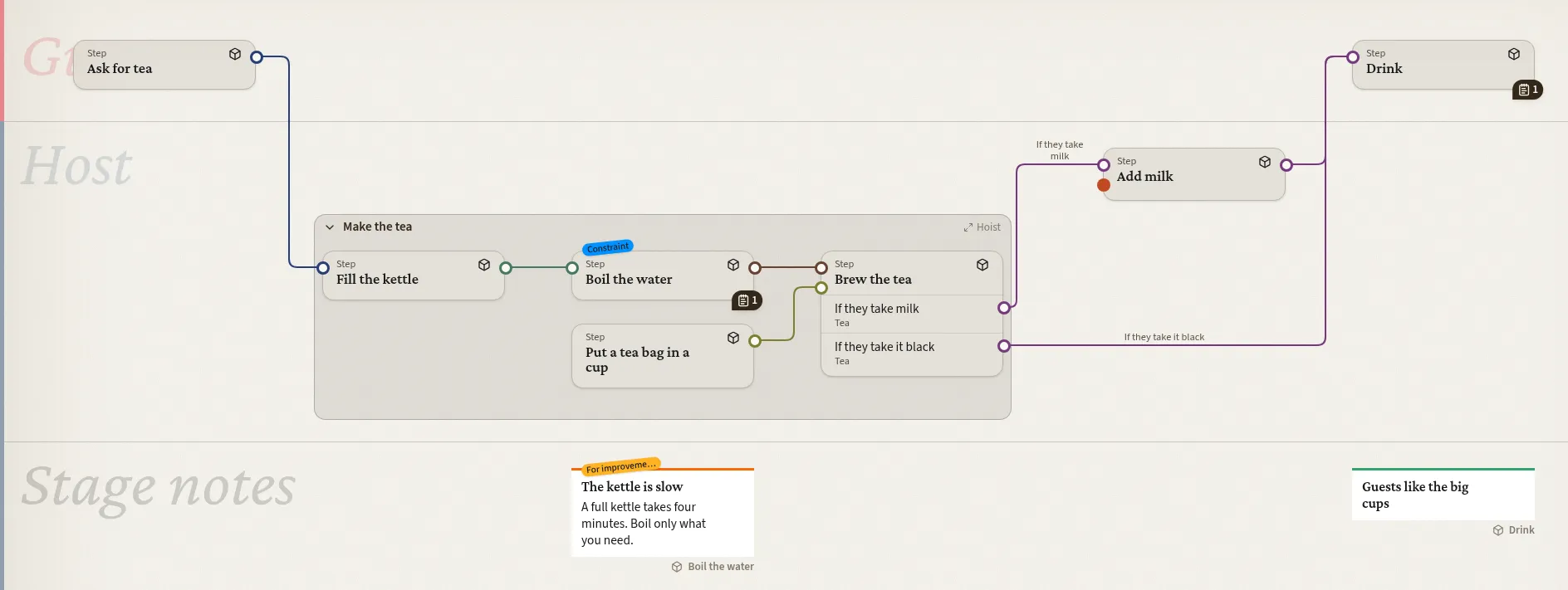
Section titled “Inputs, outputs and shared dots”A line joins exactly one output to one input of the same Object. To send something to two places, add two outputs; to receive from two places, two inputs.
On the map, several connected inputs of one Object share a dot. So do connected outputs of one Object without a condition: they leave from one dot and branch. The editor still lists each one separately.
Conditions
Section titled “Conditions”To branch, give a step one output per way and tick If on each, with a condition such as If they take milk. It shows on the card and along the line. Complexity does not evaluate conditions; they are labels.
A line back to an earlier step, or to its own step, is dotted.
Lanes show who or where: a team, a place, a system. Each is a band across the map. Move a step by setting its Lane or dragging it onto another band. Reorder lanes by dragging them in the Inventory.
Groups
Section titled “Groups”A group bundles steps of one lane. It has no meaning for the process; it exists to tame large maps (see Dealing with complexity). Make one from the menu next to New node, from several selected steps with Make a group, or by typing a new name in a step’s Group field. Groups nest up to eight deep. Moving a group to another lane moves everything in it.
Classes
Section titled “Classes”A Class is a kind of step. It sets the card’s colour and icon for all its steps at once, and can give new steps default inputs and outputs. Existing steps keep theirs when the defaults change. Make default picks the Class that new steps get.
Marks on steps, shown above the card. A new map starts with Constraint, Problem, No data and For improvement.
Stage notes
Section titled “Stage notes”Observations about steps: what works, what fails, ideas. They sit in a band under the map, each under its step, and a step with notes shows a mark with their number.
- Create one with New stage note in a step’s right-click menu or editor. Several selected steps get one shared note.
- A note has a heading, a text, a type and tags. One note can be on several steps.
- Types, with their colours and order, are under Stage notes in the Inventory. New maps have Positive and Negative.
With the journey on top and the observations under each stage, a map becomes a customer journey map. On a process map, notes keep details near a step without crowding its card.
Rigid and Free editing
Section titled “Rigid and Free editing”In Rigid editing, the default, a step needs an input or output before it can be connected. That is deliberate: an input whose source you have not mapped stays visible in Issues.
For sketching, switch Editing mode to Free in the map’s settings. Dragging one step onto another then connects them with the map’s default Object, which you can change later. The mode is your own setting for that map, in your browser.